
How to Use AssistiveTouch on Your Apple Watch
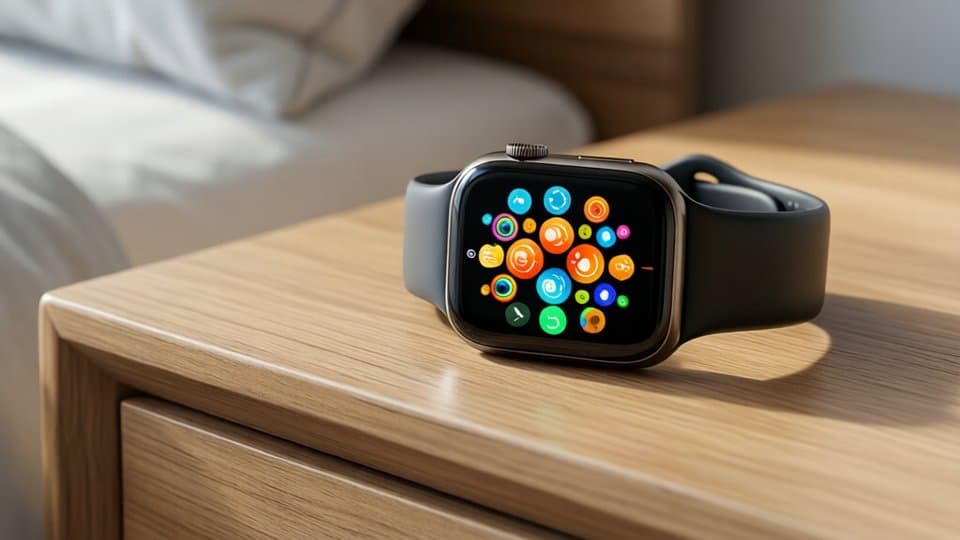
AssistiveTouch is an accessibility feature that allows you to control your apple watch through hand and finger gestures instead of physical contact. This tool helps users with motor disabilities navigate the interface, but it also provides hands-free control for anyone in everyday situations. You can enable this feature through the accessibility settings on your device.
- Engadget reports that the feature uses the gyroscope and accelerometer to detect subtle movements.
- The feature allows users to perform tasks like using Apple Pay without touching the screen, according to Engadget.
- Enabling AssistiveTouch will turn off the standard universal double tap gesture, per Engadget.
How does AssistiveTouch actually work?
AssistiveTouch functions by translating your body movements into digital commands. It relies on a combination of internal hardware, including the optical heart rate sensor, the accelerometer, and the gyroscope, to track your motions. These sensors work together to recognize specific patterns in how you move your arm or fingers.
When the feature is active, a highlight appears around different elements on the screen. This visual guide shows you which part of the display will be selected when you perform a gesture. This system ensures you can navigate the interface with precision even without a direct touch. You can also use a tool called Motion Pointer, which places a cursor on the screen that you move by moving your arm.
When is the best time to use these gestures?
The primary purpose of this technology is to provide accessibility for people who have difficulty tapping a small screen. For those with motor disabilities, being able to control the device through gestures can make the wearable much more functional. It removes the requirement for precise finger movements that might be difficult or painful.
However, there are many practical moments for general users to activate this mode. You might find it helpful when your hands are dirty while cooking in the kitchen. It is also useful if you are wearing thick gloves or if your hands are occupied, such as when you are holding a dog leash. Using your gestures allows you to scroll through menus or check notifications without needing to touch the glass.
How do I turn on AssistiveTouch?
Setting up this feature is a quick process that you can complete directly on your wrist. Follow these steps to get started:
- Open the Settings app on your device.
- Select the Accessibility menu.
- Tap on AssistiveTouch.
- Flip the toggle to turn the feature on.
- Enable Hand Gestures to start navigating without touching the screen.
Once enabled, you can customize what each movement does. For example, you might set a single finger tap to touch the screen and a double tap to open the Notification Center. If you are unsure how to perform the movements, look for the blue "Try it out" text within the Hand Gestures settings. This will launch a guided environment with animations to teach you the correct motions.
What are the limitations of this feature?
While powerful, using this mode changes how you interact with your device. The most important change is that enabling AssistiveTouch automatically disables the standard universal double tap gesture. This is the movement typically used to answer calls or scroll through widgets. You must choose between the specialized AssistiveTouch gestures and the standard system gestures.
Additionally, some users might see a floating control or a "black dot" on their screen. According to Technobezz, if you see a movable button that looks like a dot, it is likely the AssistiveTouch menu. If you want to keep the feature on but hide the icon, you can adjust the "Idle Opacity" in the settings to make it more transparent when you aren't using it.
Are there other ways to control my watch?
If you do not want to use the full AssistiveTouch suite, there are other ways to interact with the device. Some users prefer the standard Double Tap gesture, which works on newer models like the Series 9 or Ultra 2. This allows you to tap your index finger and thumb together twice to perform simple tasks like playing music or answering calls.
Another option is the "Cover to Mute" feature. This has been available since the first generation of the device. If you receive an annoying alert, you can simply cover the screen with your palm for three seconds to silence it. This provides a physical way to manage notifications without navigating through complex menus or enabling advanced accessibility settings.
What should I do if I see a dot on my screen?
It is common for users to mistake software features for hardware damage. If you see a black dot on your screen, you should first determine if it moves. If the dot moves when you interact with it, it is a software element rather than a broken pixel. According to Technobezz, you can remove this floating control by going to Settings, then Accessibility, then Touch, and turning off AssistiveTouch.
If the dot does not move, you should try different troubleshooting steps. First, clean the glass with a soft, lint-free cloth. You should also take a screenshot and view it on another device. If the dot appears in the screenshot, the issue is related to the software or rendered content. If the dot is missing from the screenshot, the problem is likely a physical blemish on your display that may require a professional inspection.
Frequently Asked Questions
Can I use AssistiveTouch if I am wearing gloves?
Yes, this feature is designed to allow you to control the interface through hand movements, making it very useful when you cannot touch the screen directly.
Will AssistiveTouch work on older models?
The feature is built into recent versions of the operating system, but specific gesture capabilities may vary depending on the sensors available in your specific model.
Does AssistiveTouch drain my battery faster?
Because the device must constantly use sensors like the accelerometer and gyroscope to detect your movements, it may impact battery life differently than standard operation.
SEO Meta Description: Learn how to use AssistiveTouch on your Apple Watch to control your device with hand gestures. Find setup steps, benefits, and how to fix screen dots.
URL Slug: what-is-assistivetouch-apple-watch-guide